VibeVoice Tutorial
How to Use VibeVoice: A Step-by-Step Guide
Learning how to use VibeVoice starts with a simple workflow: add your script, choose the voices you want, assign speakers, generate the audio, and review the result. This VibeVoice tutorial walks through the browser-based tool step by step, including script formatting, multi-speaker setup, long-form audio, common mistakes, and practical tips for getting more natural speech.
Tested with the VibeVoice browser tool · Updated August 2026
Open VibeVoiceHow Do You Use VibeVoice?
To use VibeVoice online, open the VibeVoice text-to-speech tool, paste or write your script, choose the number of speakers, assign a voice to each speaker, and generate the audio. For conversations, keep speaker labels consistent throughout the script. After generation, listen to the result, fix pronunciation or pacing in the text, regenerate if needed, and download the finished audio.
- 1. Add your script
- 2. Choose speakers and voices
- 3. Generate the audio
- 4. Review and download
How to Use VibeVoice Online: Step-by-Step
The easiest way to learn how to use VibeVoice is to follow the same workflow you will see in the browser tool. You do not need to configure a local model to create a first audio. The visible controls handle the script, speaker setup, voice selection, generation, and output.
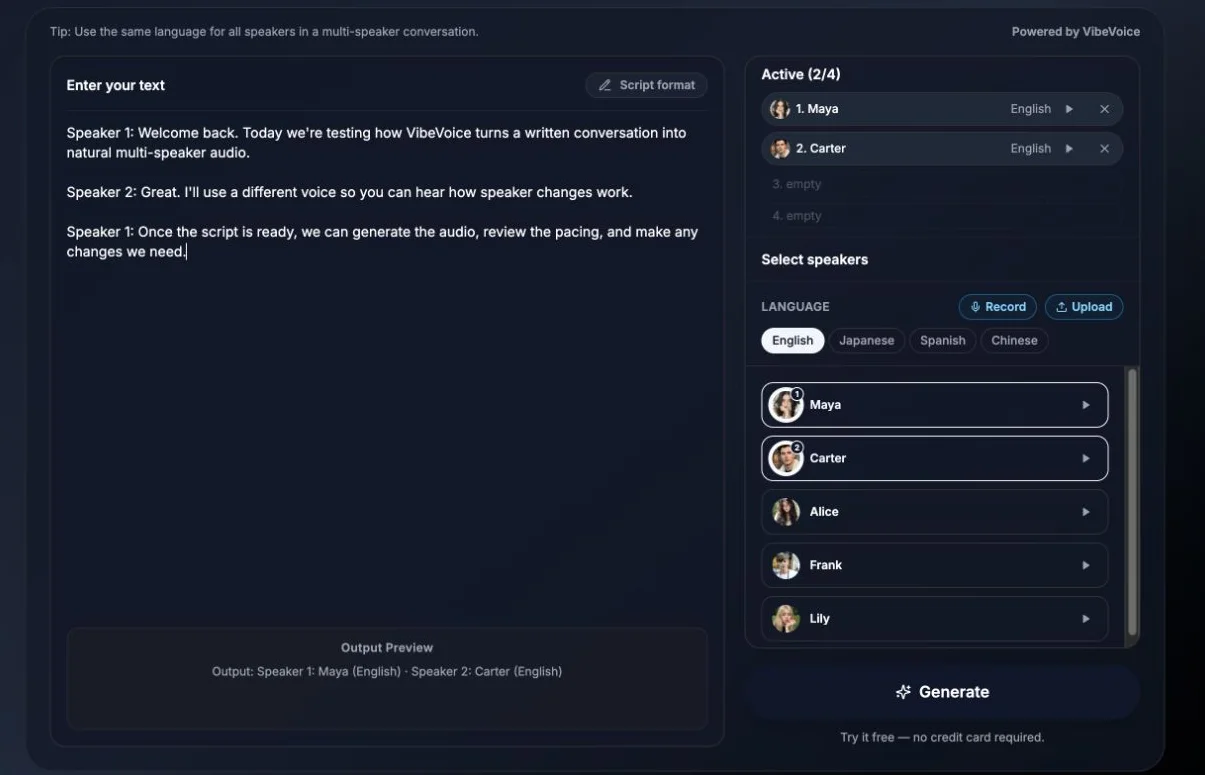
Step 1: Add Your Script to VibeVoice
Start by entering or pasting the text you want VibeVoice to speak. For simple narration, one clean block of text is enough. For dialogue or podcasts, make every speaker turn obvious. A readable VibeVoice script format is easier to inspect before you generate audio, and consistent labels give each role a clear identity.
Speaker 1: Welcome to today's episode.

Speaker 2: Thanks for having me. What are we talking about?

Speaker 1: We're looking at how AI speech can turn a written conversation into audio.
Use short, readable sentences, normal punctuation, paragraph breaks, and clear speaker changes. If an unusual name needs a specific reading, spell it in a way that helps the intended pronunciation. This VibeVoice dialogue format is a convention for clarity, not a claim that you need a hidden syntax.
Step 2: Choose Your Speakers and Voices
VibeVoice works for both narration and conversations. In the current browser tool, the speaker panel shows active roles, a language selector, and voice choices. For a two-person conversation, keep two speaker slots active and choose a different voice for each role. The tool currently supports up to four speakers, so it can also handle a host, guest, narrator, and contributor when the script needs them.
Think about the listener's job. A podcast host and guest, interviewer and subject, instructor and student, or Character A and Character B are easier to follow when the voices remain distinct. This is the practical answer to how to add multiple speakers in VibeVoice: select the needed roles first, then make the VibeVoice speaker setup match the labels in your text. Do not add voices simply because they are available; use the smallest setup that suits the script.
Step 3: Generate Audio with VibeVoice
Before you click Generate, do a short script review. Confirm the speaker labels, speaker count, selected voices, punctuation, names, and numbers. Remove duplicated text and make sure a dialogue line has not accidentally been assigned to the wrong role. This simple check prevents many avoidable reruns.
The current VibeVoice AI voice generator uses the selected voices to turn the written script into speech. Generation speed can vary, so avoid promising a fixed wait time to collaborators. Once you are ready, choose the visible Generate action and let the VibeVoice text to speech online workflow create the result. If you are new to how to use VibeVoice online, start with a short sample; it is the fastest way to hear whether the setup matches the script.
Step 4: Review, Edit, and Download the Audio
Listen to a completed result before calling it final. Check pronunciation, speaker identity, pauses, pacing, awkward sentence breaks, names, acronyms, numbers, and dialogue transitions. If one sentence sounds wrong, do not immediately regenerate the same source text. First revise the text that produced the problem.
For example, instead of writing "The launch is on 8/9.", write "The launch is on August ninth." when that is the intended spoken form. If an acronym is difficult, write it in the form you want listeners to hear. After the result sounds right, use the available VibeVoice download audio control to save it. This review-first habit makes the VibeVoice audio generator more useful than repeatedly guessing at the same script.
How to Format a Script for VibeVoice
One of the easiest ways to improve results after learning how to use VibeVoice is to improve the script itself. A TTS script should be written for listening, not just for reading. Start with consistent speaker labels: use Host: and Guest:, or use Speaker 1: and Speaker 2:. Do not mix Host:, John:, and Speaker 1: when they mean the same person.
Write natural sentences rather than long chains of clauses. Commas create light breaks, periods create clearer stops, question marks signal questions, and paragraph breaks separate ideas. Those cues help organize the VibeVoice TTS script without claiming an exact pause length. Spell out ambiguous dates, phone numbers, URLs, abbreviations, unusual names, and technical terms when their spoken form matters.
Finally, test a short segment before committing to a very long VibeVoice podcast script. It is much easier to refine one difficult name, a product version, or a conversational transition early than to revise every occurrence after a longer generation.
How to Use VibeVoice for Single-Speaker and Multi-Speaker Audio
Single-Speaker VibeVoice
Choose one voice for narration, tutorials, audiobooks, explainers, product walkthroughs, and voiceovers. This is the simplest workflow when the content does not need character separation. One consistent voice keeps the reader's attention on the information and makes the script format straightforward.
Multi-Speaker VibeVoice
Use VibeVoice multi speaker TTS for podcasts, interviews, dialogue, role-play training, fictional conversations, and Q&A content. Different voices establish roles for listeners. A VibeVoice multi speaker tutorial is most useful when you decide the roles before writing the full conversation.
The choice is about the script, not just the number of voices. A single narrator fits a focused explanation; a VibeVoice dialogue generator workflow fits content that gains meaning from an exchange between people.
How to Make a Podcast with VibeVoice
To make a podcast with VibeVoice, begin with a simple outline. Turn that outline into host-and-guest dialogue, assign a voice to each speaker, and generate a short test. Listen for pacing and speaker balance, revise awkward dialogue, then create the longer version and download it for your editing or publishing workflow. VibeVoice AI podcast scripts work best when they sound like two people talking, not two people reading essays at each other.
Host: Today we're asking a simple question: why do some habits stick?

Guest: The answer usually starts with reducing friction.

Host: So the environment matters as much as motivation?

Guest: Exactly. Small changes make the desired action easier to repeat.
A VibeVoice podcast generator does not claim to add music, mixing, mastering, or hosting. It gives you a multi-speaker text to speech starting point that you can review, edit, and take into the rest of your production process.
How to Use VibeVoice for Long-Form Text to Speech
Long-form capability is helpful for podcast drafts, training material, lessons, audiobook drafts, interview-style content, and extended explainers. The current VibeVoice browser tool states that it can generate up to 90 minutes in one pass. That does not mean an unfinished document should be pasted in and generated immediately.
Clean the script first, verify speaker labels, test difficult names, try the first section, and check the selected voices. Then generate the longer version when the structure is stable. This approach to VibeVoice long form TTS protects time and makes longer audio easier to review. For how to use VibeVoice for long-form audio, think of a short sample as a rehearsal rather than an extra step.
7 Tips for Better VibeVoice Results
1. Write for speech, not for reading
Web copy can be dense and formal. A VibeVoice tutorial works better when the script uses shorter, direct sentences that sound comfortable aloud. Read a line once before generating it and split it when the pause feels unclear.
2. Keep speaker names consistent
In a VibeVoice multi speaker project, one role should use one label throughout. A host should not become Speaker 1 halfway through the script. Consistency helps you check speaker turns before generation.
3. Use punctuation to shape rhythm
Use normal commas, periods, question marks, and paragraph breaks to organize thought. They give the text a readable shape without relying on unusual symbols or promises about exact pause lengths.
4. Test names before a long generation
People, places, products, and technical vocabulary may need a small preview. Testing the hard lines first is a practical part of using VibeVoice for podcasts, training, and longer narration.
5. Expand ambiguous numbers
Dates, version numbers, prices, and abbreviations can have more than one spoken form. Write the intended form when it matters, especially in customer-facing scripts and instructional audio.
6. Start with a short test
Do not discover a formatting problem after generating a long piece of audio. A representative section checks voice choice, labels, pacing, and script style before you commit the complete project.
7. Listen before downloading
Treat the first output as a review version. Listen for transitions, awkward phrasing, and missed context. This final pass is what turns a quick VibeVoice TTS tutorial workflow into audio you can confidently share.
Common VibeVoice Problems and How to Fix Them
| Problem | Practical fix |
|---|---|
| The wrong speaker reads a line | Check the labels in the script and confirm that the number of roles matches the configured speaker setup. |
| A name sounds wrong | Try a phonetic rewrite or adjust the surrounding sentence, then test that short line again. |
| The audio sounds too fast | Shorten long sentences, use normal punctuation, and separate ideas into clearer paragraphs. |
| Dialogue feels unnatural | Rewrite formal prose as conversation. Shorter replies usually sound more believable in back-and-forth dialogue. |
| Numbers are read unexpectedly | Spell out the intended spoken form when a date, number, or abbreviation could be ambiguous. |
| A long script needs too many revisions | Test representative sections first, then generate the complete project after voice and formatting decisions are settled. |
Can You Use VibeVoice Online Without Installing It?
Yes. This website provides a browser-based VibeVoice workflow, so users who simply want to turn scripts into speech do not need to configure a local environment before getting started. The VibeVoice browser tool lets you create narration and dialogue online, choose speakers, and review the result from the same workflow.
There are also open-source and VibeVoice local workflows in the broader ecosystem, but they involve a different setup process. This guide covers VibeVoice online: how to use VibeVoice online, use VibeVoice without installing, and keep the focus on writing and reviewing a script. Local deployment deserves a separate technical guide rather than a detour into Python dependencies, CUDA, or ComfyUI here.
What About VibeVoice Voice Cloning?
VibeVoice voice cloning is a separate workflow from choosing a preset voice in the browser tool. A custom voice can be useful when a project has authorized reference audio and a specific voice requirement, while preset voices are a faster starting point for ordinary narration or dialogue. Only use reference audio that you own or have permission to use. This guide remains focused on the general VibeVoice text-to-speech workflow rather than becoming a voice clone tutorial.
How to Use VibeVoice FAQ
How do I use VibeVoice?+
Open the VibeVoice text-to-speech tool, add a script, select the speakers and voices you need, then choose Generate. Listen to the result before treating it as final. If a line needs work, edit the source text, generate again, and use the available download control once the audio is ready.
Can I use VibeVoice online?+
Yes. VibeVoice runs as a browser-based workflow for people who want to turn scripts into speech. You can write or paste text, select voices, create narration or dialogue, and review the generated result without setting up a local environment.
Do I need to install VibeVoice?+
No installation is needed for the browser tool covered in this guide. Local and open-source VibeVoice workflows are separate technical setups. If your goal is script-to-speech generation, start with the online tool rather than configuring a local model.
How do I add multiple speakers in VibeVoice?+
Keep the required speaker slots active, select a different voice for each role, and use matching labels in the script such as Speaker 1 and Speaker 2. The current browser tool supports up to four speakers, so make sure the script roles do not exceed the selected setup.
What is the correct VibeVoice script format?+
For narration, clean paragraphs are enough. For dialogue, add a clear and consistent label before each turn. Avoid switching between labels such as Host, John, and Speaker 1 when they refer to the same person; consistent labels make the conversation easier to review.
Can I use VibeVoice for podcasts?+
Yes. VibeVoice can help create scripted podcast intros, host-and-guest conversations, interview drafts, and narrated segments. Start with a short sample, listen for pacing and speaker balance, then revise the dialogue before producing a longer episode.
Can VibeVoice generate long-form audio?+
The current browser tool is positioned for up to 90 minutes in one generation. Long-form audio is useful for training, lessons, podcast drafts, audiobook preparation, and longer explainers. Clean the script and test representative passages before sending a large project.
How many speakers can I use with VibeVoice?+
The current VibeVoice browser tool supports up to four speakers. One voice is usually enough for narration, while two to four voices can help listeners follow interviews, panel-style discussions, role-play training, and character dialogue.
What should I do if VibeVoice pronounces a word incorrectly?+
Edit the text before regenerating. Try spelling an unusual name the way it should be said, expanding an abbreviation, or changing the surrounding sentence. A short test is usually more efficient than regenerating a full script while a difficult name or number remains unresolved.
Can I download audio generated with VibeVoice?+
After you review a completed result, use the download control available in the tool to save the generated audio. This guide does not assume a particular file format; check the current interface and plan terms for the options available to your account.
Start Using VibeVoice
Now that you know how to use VibeVoice, start with a short script and test the workflow for yourself. Choose your speakers, turn the text into natural AI speech, review the result, and expand into longer narration, podcasts, dialogue, or training audio when you're ready.
Open VibeVoiceEnglish Text to Speech·Japanese Text to Speech·Spanish Text to Speech·VibeVoice pricing